
criterion:toc
Table of Contents
Table of Contents Management
Overview
The Table of Contents (ToC) in the Criterion application is a dynamic, navigable structure that provides users with a hierarchical view of the document. It helps editors maintain a clear and logical organization of the critical edition and facilitates efficient navigation.
Accessing the Table of Contents
To manage the ToC:
- Use the menu: Format → Table of Contents to customize the formatting of the ToC
- Use the menu: Format > Layout to include the ToC using the “Include ToC” option
Once created, the ToC will be displayed in:
1. The main document editor
2. The left sidebar navigation panel
3. The print preview panel
Sidebar Navigation Panel
- The sidebar shows or hides the ToC using the button next to the Undo icon
- If the ToC hasn't been created, the navigation panel will not display it
Creating and Updating the ToC
Each document can contain only one ToC.
- The ToC is generated automatically based on the section headings defined in the document
- The ToC updates when you click the Update Table of Content button present in the menu of Text box after modifying, adding, or removing sections
Display Logic:
- More section levels than selected → only 6 levels are shown (Title and 5 sublevels)
- Fewer section levels than selected → only those available are shown
- No sections → ToC is not generated
Customizing the ToC
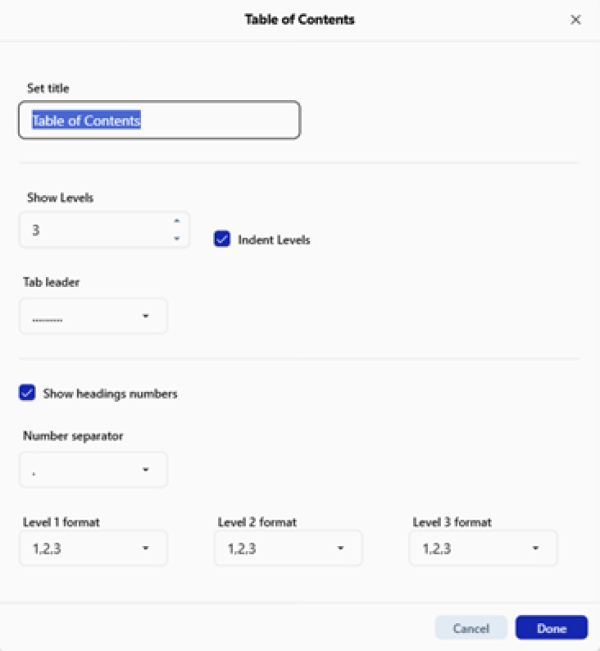
The user can customize the ToC via the “Format → Table of Contents” menu or by directly interacting with the sidebar.
Customizable Options:
| Option | Description |
| Title | Double-click on the ToC title in the sidebar to rename it |
| Displayed Section Levels | Choose between 1 to 6 levels (default: 3) |
| Indentation | Enable or disable indented hierarchy (applies only to heading levels, not titles) |
| Tab Leader | Choose the type of leader (default: “…….”) |
| Number Separator | Choose a symbol like dot, hyphen, etc. (default: dot) |
| Number Format | Define numbering for each level (e.g., 1,2,3 – i, ii, iii – a,b,c) |
| Text Style and Formatting | Title uses “Title” style by default; List entries use “Body Text” style |
Default ToC Settings:
| Setting | Default Value |
| Show Levels | 3 |
| Indent Levels | Enabled |
| Tab Leader | “…….” |
| Heading Numbers | Enabled |
| Number Separator | Dot (.) |
| Number Format (1–5) | “1, 2, 3” style |
Limitations
- Users cannot manually edit ToC entries or section names from within the ToC
- Only the title and visual aspects can be customized
- The content is automatically regenerated based on the document structure
Cross-References and Navigation
The ToC supports dynamic linking:
- Clicking a heading in the ToC in the pane scrolls the editor to the corresponding section
- The currently active section is visually highlighted in the sidebar
- This feature works regardless of document length and complexity
- If section titles change, the links are updated to prevent broken references
Reordering Sections via ToC
While individual ToC entries cannot be reordered, users can:
1. Reorganize document sections by dragging the collapsible section headers within the main text
2. This action updates:
- The ToC in the sidebar
- The print preview (if visible)
 | Note: The sidebar also supports expanding/collapsing subsections via the “▾” icon next to each entry, and scrolling through the ToC when many sections are present. |
|---|
Print and Export Behavior
- In the editor, page numbers appear as placeholders (TBD)
- In preview/print/export, these placeholders are replaced with actual page numbers using the style defined by the user
| | Note Important: Due to technical limitations, page numbers will not be displayed in the editor and will remain marked as TBD. Actual page numbering will be automatically generated during print preview, based on the content entered by the user. |
|---|
Integration with Document Structure
The ToC is tightly coupled with the document structure:
- Ensures coherence with other elements such as:
- Footnotes
- Numbering
- References
- Annotations
- Changing a section title or structure will automatically:
- Update the ToC
- Adjust numbering
- Maintain reference consistency with the text
criterion/toc.txt · Last modified: by fincons