
Table of Contents
Link Management in Criterion
Overview
This guide will show you how to create and manage external hyperlinks directly inside your documents. Whether you're referencing a website, sharing a resource, or connecting to online documentation, Criterion makes it easy to add clickable links with just a few clicks.
With this feature, you can:
- Insert links to external websites
- Edit existing links
- Remove links without deleting text
All actions are consistent across menu, toolbars, and keyboard shortcuts — so you can work the way you prefer.
Inserting an External Link
You can turn any selected text into a clickable link that opens an external webpage (e.g., https://www.example.com).
Note important:
- You must select text first. If no text is selected, all options will be disabled.
- Links can be inserted both in the main text and in the free text in the sidebar boxes.
How to Insert a Link
Choose any of these methods:
| Method | Action |
|---|---|
| Menu | Go to Insert → Link |
| Bubble Toolbar | Click the 🔗 Link icon (appears after text selection) |
| Contextual Menu | Right-click → Click the 🔗 Link icon |
| Toolbar Button | Click the 🔗 Link icon in the main toolbar |
| Keyboard Shortcut | Press Ctrl+K (Windows/Linux) or ⌘+K (macOS) |
What Happens Next?
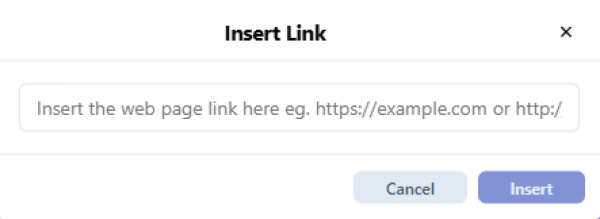
A small dialog box appears where you can:
1. Enter or paste the full URL (e.g., https://www.criterion-app.com/support)
2. Confirm by clicking Insert or pressing Enter
The selected text becomes a clickable blue hyperlink.
 | Note: Links are preserved when exporting to PDF and XML/TEI formats. |
|---|
Editing an Existing Link
You can change the destination of any existing link without starting over.
How to Edit a Link
Make sure the linked text is selected, then use one of these methods:
| Method | Action |
|---|---|
| Menu Bar | Insert → Link (only active if linked text is selected) |
| Bubble Toolbar | Click the 🔗 Link icon |
| Contextual Menu | Right-click → Click the 🔗 Link icon |
| Toolbar Button | Click the 🔗 Link button again |
| Keyboard Shortcut | Press Ctrl+K (Windows/Linux) or ⌘+K (macOS) |
The same dialog box appears, allowing you to modify the URL. Click Insert to save changes.
Removing a Link
This action removes only the link behaviour and formatting — the text stays exactly where it is.
How to Remove a Link
With the linked text selected, choose one of the following:
| Method | Action |
|---|---|
| Menu | Insert → Remove Link |
| Bubble Toolbar | Click the 🔗 Link icon → Select Remove Link |
| Contextual Menu | Right-click → Click the 🔗 Link icon → Remove Link |
| Toolbar Button | Click the 🔗 Link button → Click Remove Link icon |
| Keyboard Shortcut | Press Ctrl+Shift+K (Windows/Linux) or ⇧⌘+K (macOS) |
The text returns to normal — no underline, no colour, no clickability.
Link Behavior and Limitations
Supported Locations
| Location | Links Supported? |
| Main Text | ✅ Yes |
| Apparatus Boxes (Critical, Page, Section, Margin Notes) | ✅ Yes (in free text portions) |
| Sidebar Boxes (Comments, Bookmarks) | ✅ Yes (in free text portions) |
| Table of Contents | ❌ No |
| Bibliography Section | ❌ No (use citations instead) |
Export Behavior
| Export Format | Link Preservation |
| ✅ Links remain clickable in the exported PDF | |
| XML/TEI P5 | ✅ Links encoded as <ref> elements with target attribute |
| Excel (Apparatus Export) | ✅ URLs preserved in cell content |
| ✅ URLs visible (underlined or as footnotes depending on settings) |
Best Practices
- Use descriptive link text: Instead of “click here”, use meaningful text like “Criterion User Manual”
- Verify URLs before inserting: Broken links cannot be automatically detected by Criterion
- Keep links updated: If a URL changes, edit the link rather than deleting and recreating it
- Avoid excessive linking: Too many links can reduce document readability
- Test links in PDF export: Always verify that links work correctly in the final exported document
Keyboard Shortcuts Summary
| Action | Windows/Linux | macOS |
|---|---|---|
| Insert Link | Ctrl+K | ⌘+K |
| Edit Link | Ctrl+K (with link selected) | ⌘+K (with link selected) |
| Remove Link | Ctrl+Shift+K | ⇧⌘+K |