
criterion:getting_started
This is an old revision of the document!
Table of Contents
Getting Started with Criterion
Your First Critical Edition in 5 Simple Steps
Welcome to Criterion, a powerful desktop application for creating professional, print-ready digital critical editions. Whether you're editing a medieval manuscript, a classical text, or a modern work with multiple versions, Criterion helps you manage main text, critical apparatus, witnesses (sigla), citations, and paratextual elements in one seamless workflow.
Step 1: Create a New Document
To create a new document:
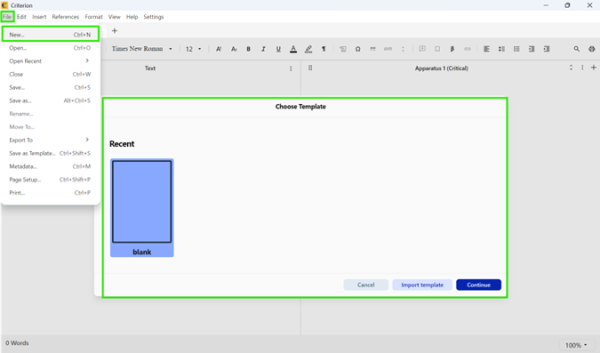
1. Open **Criterion**
2. Click **File > New** or use the splash screen:
  * Choose **Blank Layout** to start from scratch
  * (Optional) Select a **recent template** if you've saved one before
3. Your document will open with a default structure:
  * **Critical Text** (required)
  * **Critical Apparatus** (one box, below the text)
  * Optional: Introduction, Table of Contents, Bibliography
Tip: Always save early! Press Ctrl+S (⌘+S on macOS) to save your .critx file.
For collaboration: To share your document later, first create a Criterion account via File > Sign In > Create Account (Windows/Linux) or Criterion > Sign In > Create Account (macOS).
Step 2: Add Your Main Text
1. Click in the **Critical Text** section: only the Critical Text section supports critical apparatus notes; other sections (like Introduction) only allow Page or Section Notes.
2. Type or paste your edited text
3. Use **section headings** (e.g., Heading 1, Heading 2) to structure your document—these will automatically populate your **Table of Contents**
Step 3: Define Your Witnesses (Sigla)
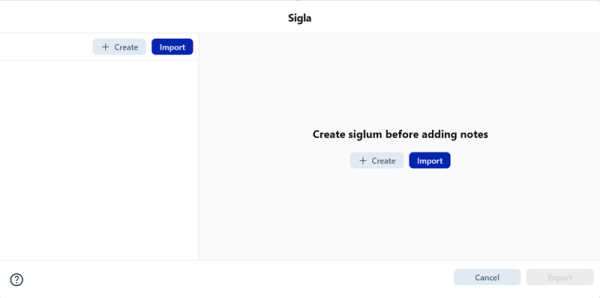
Before adding variants, you need to register your sources (manuscripts, editions, etc.) as sigla:
1. Go to **References > Sigla Setup...** (or press **F6**)
2. Click **Create**, then fill in:
  * **Siglum**: A short ID (e.g., A, Vat. lat. 123)
  * **Manuscript(s)**: A bibliographic description (required)
  * **Description**: Optional details (paleography, condition, etc.)
3. Click **Save**
Tip: You can import/export sigla later via JSON for reuse across projects.
Step 4: Add a Critical Note
Now link a variant to your text:
1. **Select a word or phrase** in the Critical Text (this becomes your lemma)
2. Press **F5** or click the "Add Note" icon in the toolbar
3. In the **Critical Apparatus** box that appears below:
  * Press **F3** to insert a siglum (e.g., A)
  * Press **F4** to add a reading type (e.g., om. for omission)
  * Type free text (e.g., //fortasse recte//)
  * Press **F2** to insert a reading separator (: by default)
4. Repeat to add more readings
Preview: Go to View > Print Preview to see line numbers, page layout, and final formatting.
Discuss with collaborators: Select any text passage and click the “Forward selected text to chat” icon (↪️) to instantly share it with collaborators for discussion.
Step 5: Export or Print Your Edition
When ready to share or publish:
1. Go to **File > Export To...**
2. Choose your format:
  * **PDF**: For print, review, or submission (includes headers, line numbers, notes)
  * **XML/TEI P5**: For digital archives or computational analysis
3. (For PDF) Select which sections to include (e.g., exclude comments)
4. Click **Export** your file will be saved to your chosen location
🎉 Done! You've created your first critical edition in Criterion.
What's Next?
- Customize layout: Go to Format > Layout to adjust columns, margins, and apparatus types
- Add citations: Use References > Add Citation to insert scholarly references
- Style your text: Use Format > Section Style to control fonts, spacing, and alignment
- Collaborate: Export apparatus notes to Excel (Export > Excel from any apparatus box) or invite collaborators via cloud sharing
- Stay informed: Check the notification bell (🔔) regularly for updates on shared documents and chat messages
criterion/getting_started.1773043793.txt.gz · Last modified: by fincons