
criterion:getting_started
Table of Contents
Getting Started with Criterion
Your First Critical Edition in 5 Simple Steps
Welcome to Criterion, a powerful desktop application for creating professional, print-ready digital critical editions. Whether you're editing a medieval manuscript, a classical text, or a modern work with multiple versions, Criterion helps you manage main text, critical apparatus, witnesses (sigla), citations, and paratextual elements in one seamless workflow.
Step 1: Create a New Document
To create a new document:
1. Open Criterion
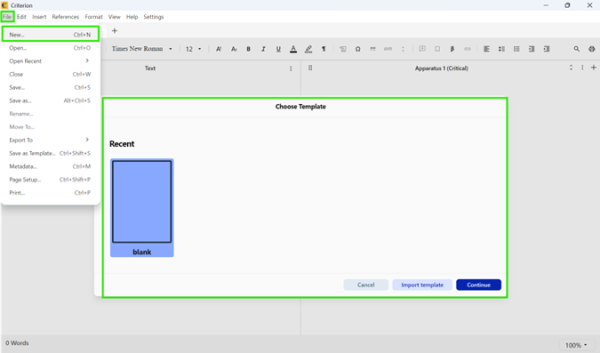
2. Click File > New or use the splash screen:
- Choose Blank Layout to start from scratch
- (Optional) Select a recent template if you've saved one before
3. Your document will open with a default structure:
- Critical Text (required)
- Critical Apparatus (one box, below the text)
- Optional: Introduction, Table of Contents, Bibliography
Tip: Always save early! Press Ctrl+S (⌘+S on macOS) to save your .critx file.
For collaboration: To share your document later, first create a Criterion account via File > Sign In > Create Account (Windows/Linux) or Criterion > Sign In > Create Account (macOS).
Step 2: Add Your Main Text
1. Click in the Critical Text section:
- only the Critical Text section supports critical apparatus notes;
- other sections (like Introduction) only allow Page or Section Notes.
2. Type or paste your edited text
3. Use section headings (e.g., Heading 1, Heading 2) to structure your document—these will automatically populate your Table of Contents
Step 3: Define Your Witnesses (Sigla)
Before adding variants, you need to register your sources (manuscripts, editions, etc.) as sigla:
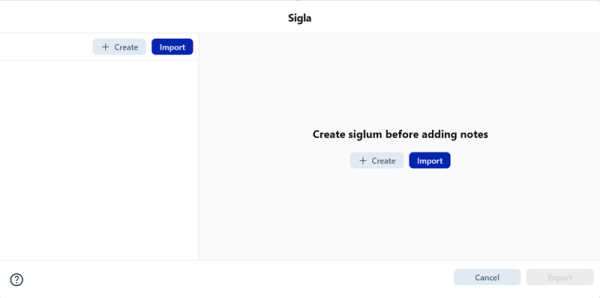
1. Go to References > Sigla Setup... (or press F6)
2. Click Create, then fill in:
- Siglum: A short ID (e.g., A, Vat. lat. 123)
- Manuscript(s): A bibliographic description (required)
- Description: Optional details (paleography, condition, etc.)
3. Click Save
Tip: You can import/export sigla later via JSON for reuse across projects.
Step 4: Add a Critical Note
Now link a variant to your text:
1. Select a word or phrase in the Critical Text (this becomes your lemma)
2. Press F5 or click the "Add Note" icon in the toolbar
3. In the Critical Apparatus box that appears below:
- Press F3 to insert a siglum (e.g., A)
- Press F4 to add a reading type (e.g., om. for omission)
- Type free text (e.g., //fortasse recte//)
- Press F2 to insert a reading separator (: by default)
4. Repeat to add more readings
Preview: Go to View > Print Preview to see line numbers, page layout, and final formatting.
Discuss with collaborators: Select any text passage and click the “Forward selected text to chat” icon to instantly share it with collaborators for discussion.
Step 5: Export or Print Your Edition
When ready to share or publish:
1. Go to File > Export To...
2. Choose your format:
- PDF: For print, review, or submission (includes headers, line numbers, notes)
- XML/TEI P5: For digital archives or computational analysis
3. (For PDF) Select which sections to include (e.g., exclude comments)
4. Click Export your file will be saved to your chosen location
🎉 Done! You've created your first critical edition in Criterion.
What's Next?
- Customize layout: Go to Format > Layout to adjust columns, margins, and apparatus types
- Add citations: Use References > Add Citation to insert scholarly references
- Style your text: Use Format > Section Style to control fonts, spacing, and alignment
- Collaborate: Export apparatus notes to Excel (Export > Excel from any apparatus box) or invite collaborators via cloud sharing
- Stay informed: Check the notification bell (🔔) regularly for updates on shared documents and chat messages
criterion/getting_started.txt · Last modified: by fincons