Table of Contents
Collaboration, Sharing and Chat
Cloud Features Overview
Criterion's cloud features enable users to collaborate securely and in a structured manner when creating digital critical editions. This section covers:
- Account management
- Document sharing and invitation management
- Notifications and email management
- Integrated chat system
 | Note: All operations performed directly from desktop application, in compliance with GDPR Regulation (Art. 17 – “right to be forgotten”). |
|---|
Document Sharing and Invitation Management
Share critical edition documents with other Criterion users via integrated cloud system. Collaboration is controlled, tracked, and secure: collaborators can download and view document in read-only mode, without ability to modify original content.
Prerequisites:
- User must be authenticated (Sign In completed)
- Device must be online (active Internet connection)
- Document must be saved as .critx file on disk (not unsaved “virtual” document)
Sharing a Document ("Invite Collaborator")
1. Open the .critx document to share
2. Access sharing function:
  - Windows/Linux: File > Invite Collaborators
  - macOS: Criterion > Invite Collaborators
3. "Share Document" form opens showing:
  - Name/surname of owner (current user)
  - Collaborator search field
  - "Recipients" area for selected collaborators
  - Invitation message field (max 255 chars, mandatory)
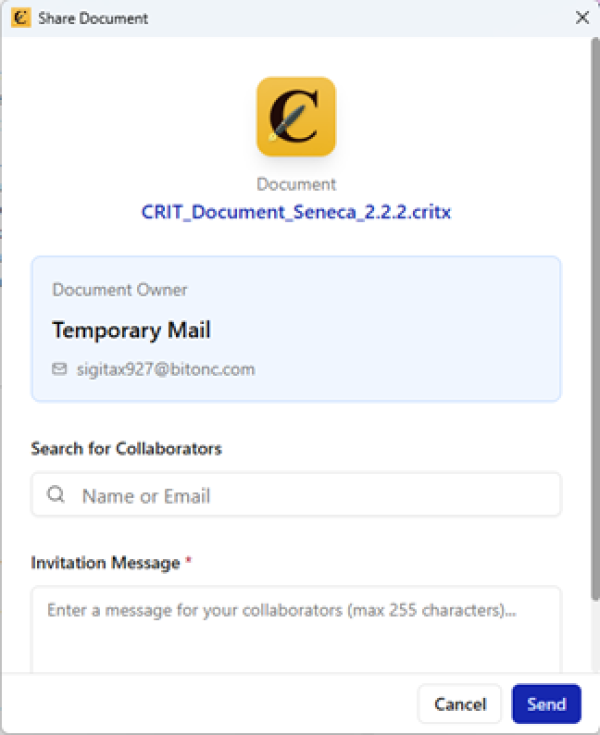
Search collaborators: Type to filter by Name/Surname, Institution, or Keywords (e.g., “TEI”, “palaeography”, “Latin”). Results: max 10 at a time with infinite scrolling.
To send invitation:
1. Select one or more collaborators from list → added to "Recipients" area
2. Write custom message (mandatory)
3. Click Send:
  - Email sent + in-app notification for each collaborator
  - Invitation status becomes Pending
  - Validity: 14 days (expires automatically → status Expired)
Managing Shares ("Shared Documents")
Access:
- Windows/Linux: File > Shared Documents
- macOS: Criterion > Shared Documents
Interface presents two tabs:
"My Documents" Tab (Owner View)
Displays all documents owned and shared with other users.
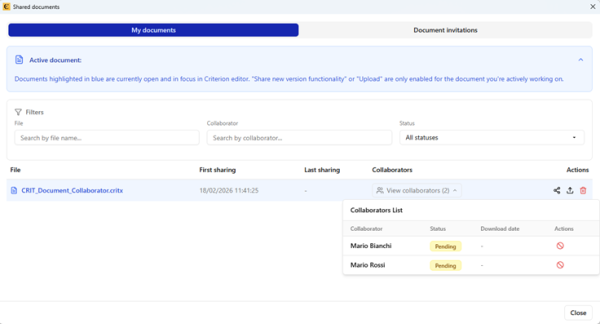
For each document:
| Field | Description |
| File name | Name of .critx file |
| Date of First Sharing | Date of first invitation (immutable) |
| Date of Last Sharing | Date of last version upload (updated only on new upload) |
| Owner | Name and surname of owner |
| Collaborators | Expandable list with: collaborator name, invitation status, download date |
| Actions | Contextual buttons for collaborator management |
Collaboration Statuses:
| Status | Meaning |
| ✅ Accepted | Collaborator accepted invitation |
| ⏳ Pending | Invitation active (not yet accepted/declined, within 14 days) |
| ❌ Declined | Collaborator explicitly declined |
| 🕒 Expired | Invitation expired (not accepted within 14 days) |
| 🚫 Revoked | Owner revoked invitation |
Actions per Document
| | Note: Active Document Highlighting: document currently open in editor visually highlighted. Upload actions enabled only for active document. |
|---|
- Share: Reopens form to add new collaborators
- Upload: Uploads new version (only if document active in editor and saved). New version automatically shared with all collaborators not in Revoked status.
- Delete: Permanently terminates sharing with all collaborators (irreversible)
Actions per Collaborator (conditioned by status):
| Status | Revoke | Resend Invite |
| Accepted | ✅ Yes | ❌ No |
| Pending | ✅ Yes | ✅ Yes |
| Declined | ❌ No | ✅ Yes |
| Expired | ❌ No | ✅ Yes |
| Revoked | ❌ No | ✅ Yes |
"Document Invitations" Tab (Collaborator View)
Displays all documents for which user has received an invitation.
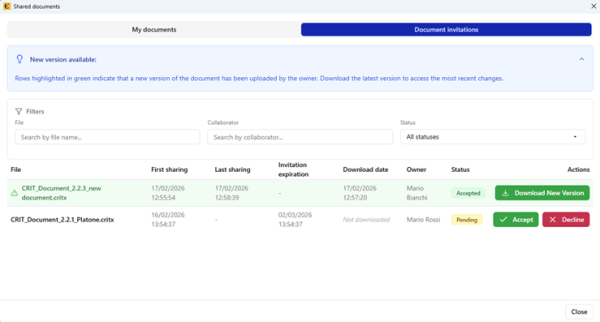
For each document:
| Field | Description |
| File name | Name of .critx file |
| Date of First/Last Sharing | Dates identical to owner view |
| Deadline for Invitation | Expiration date = Last Sharing Date + 14 days |
| Date of Download | When collaborator downloaded document |
| Owner | Name and surname of owner |
| Invitation Status | Current invitation status |
| Actions | Contextual buttons (Accept/Decline if Pending; Download/Download New Version if Accepted) |
| | Note: Visual Highlighting: if Date of Download < Date of Last Sharing, entire row highlighted in green → indicates new version available but not yet downloaded. |
|---|
Advanced Filtering:
- “File” field: partial search on filename
- “Owner” field: partial search on owner name
- “Invitation Status” dropdown: filter by status
- “Search by collaborator” field: search across all collaborators of all documents
- Filters combinable, applied in real-time
- Results counter visible
- Message “No shared files match current filters” if no results
Accepting/Declining Invitation (Collaborator)
Acceptance:
1. In "Shared with me" tab, click Accept on Pending invitation
2. Status becomes Accepted
3. Click Download → choose local folder → document downloaded and opened in Criterion in read-only mode
4. Email notification sent to owner: "[Collaborator Name] accepted your invitation..."
| | Note: One-time Download: each document can be downloaded only once per version. For new versions, owner must perform new Upload and collaborator receives “Download New Version” notification. |
|---|
Decline:
1. Click Decline on Pending invitation
2. Status becomes Declined
3. Collaborator loses all access to document
4. Email notification sent to owner: "[Collaborator Name] declined your invitation..."
Document Access Rules
A collaborator can download and view a document only if:
- They have accepted invitation (Accepted)
- Owner has not revoked access (not Revoked)
- Document has not been deleted by owner
If access revoked after download:
- Logged-in user: file opens in read-only mode, no interactive features
- Not logged-in user: local file opens in read-only mode, no cloud synchronization
Notification and Email Management
Criterion notifies users in real-time of all relevant events related to collaboration on shared documents. Notifications displayed via bell icon (🔔) and, for critical events, also sent by email.
Accessing the Notification Center
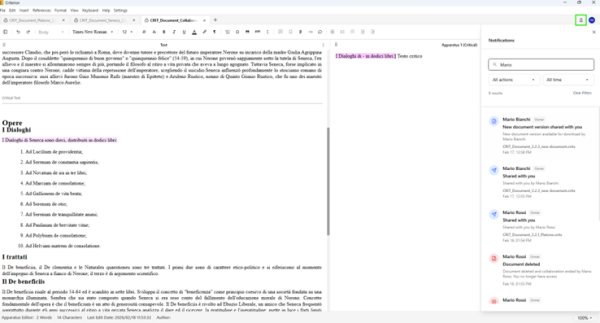
1. Click 🔔 (bell icon) in top-right toolbar
2. Icon shows red numeric badge with count of unread notifications
3. Upon opening panel, all notifications automatically marked as "read"
Notification Structure
Each notification includes:
- Colored icon: distinctive for event type (✅ green for acceptance, 🚫 red for revocation)
- Title: e.g., “Shared with you”, “Collaboration accepted”
- Description with:
- Name/surname of user who performed action
- Role (Owner/Collaborator)
- Name of document involved
- Date and time (user's local timezone)
- Timestamp: formatted consistently with Criterion interface
Events That Generate Notifications
| Event | Recipient | In-App Notification | |
| Send/Resend invitation | Collaborator | ✅ Yes | ✅ Yes |
| Revoke access | Collaborator | ✅ Yes | ✅ Yes |
| New document version | Collaborator | ✅ Yes | ✅ Yes |
| Delete document | Collaborator | ✅ Yes | ✅ Yes |
| Accept invitation | Owner | ✅ Yes | ✅ Yes |
| Decline invitation | Owner | ✅ Yes | ✅ Yes |
| Download document | Owner | ✅ Yes | ✅ Yes |
| Download new version | Owner | ✅ Yes | ✅ Yes |
| Invitation expiration (14 days) | Owner + Collaborators | ✅ Yes | ✅ Yes |
| Password change | User | ✅ Yes | ❌ No |
| Account deletion | Owner + Collaborators | ❌ No | ✅ Yes |
Advanced Notification Management
Notification panel offers filtering and searching tools:
Real-time Search:
- “Search by user name” field at top
- Results update instantly as you type
- Searches name/surname of user who generated event
Filter by Action Type:
- “Action Type” dropdown
- Options: Send invitation, Resend invitation, Revoke access, Share new version, Delete document, Accept invitation, Decline invitation, Download, etc.
Filter by Time Range:
- “Date” dropdown
- Options: All time (default), Today, Yesterday, Last 7 Days, Last 30 Days
Additional Features:
- Results counter shows number of notifications matching active filters
- “Clear Filters” button restores full list
- Empty state message: “No notifications found” if no matches
Integrated Chat System in Criterion
Collaborators on a shared document can discuss textual variants, editorial decisions, and annotations directly within editing environment, without leaving Criterion. Each document has dedicated, isolated chat thread with persistent history and synchronization.
| | Note: Chat only available for documents shared with at least one other collaborator who has accepted invitation and downloaded/opened document within Criterion. New collaborators see only messages exchanged since they joined. |
|---|
Accessing the Chat
Access paths:
- Main menu: File > Open Chat
- Toolbar: click 💬 (chat icon)
Chat Functionality
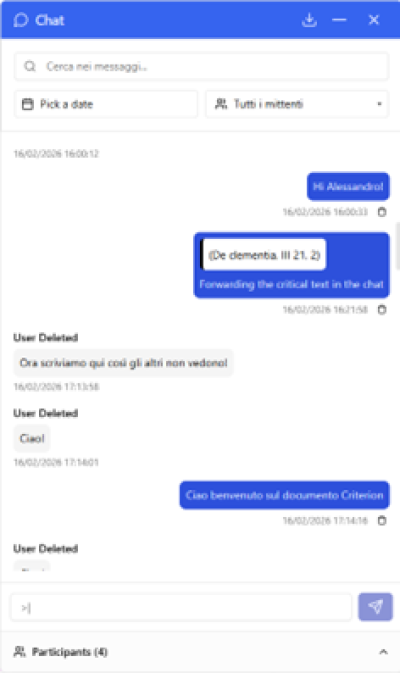
Dedicated Thread per Document:
- Each shared document has isolated chat thread
- Impossible to access chat of other documents without opening them in Criterion
Participants:
- Only users with access to document (owner + collaborators with Accepted status) can send/receive messages
- Participant list visible in chat panel with full name of each collaborator
Message Structure:
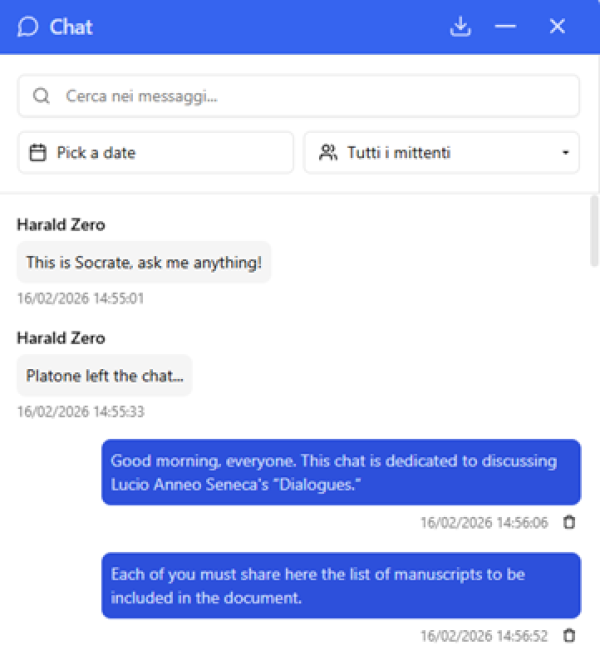
Each message displays:
- Sender name (or initials if unavailable): “Maria Bianchi”
- Message text: “I noticed this variant might be more appropriate.”
- Timestamp (local time): “Dec 18, 10:02 AM”
- For messages with text reference: quote icon + slightly colored background
Sending Messages
- Input field at bottom of chat panel
- Enter → sends message
- Shift+Enter → new line (if multi-line input supported)
Message Deletion
- Users can delete only their own messages
- Deleted message → replaced by placeholder: “Message deleted by sender”
- Action irreversible for all participants
Advanced Search
Search bar with real-time filters on:
- Message text
- Text forwarded from document
- Submission date
- Sender
Contextual Text Referencing ("Forward selected text to chat")
Exclusive feature to start discussions on specific passages:
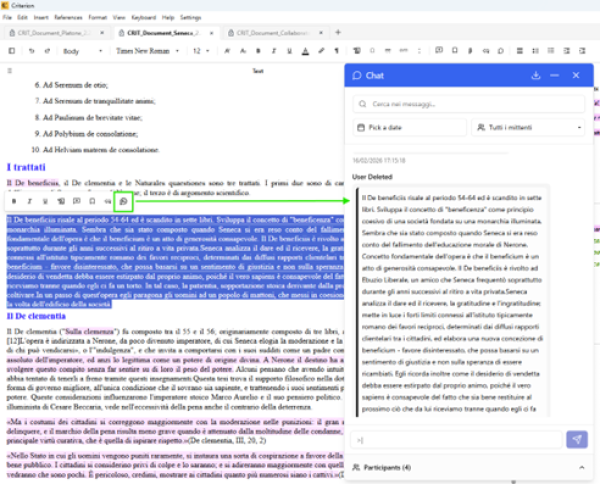
1. Select text in Main Text or any apparatus box (Critical, Page Notes, Section Notes, Margin Notes)
2. Activate forwarding via:
  - Bubble toolbar (after text selection)
  - Context menu (right-click) → Forward to chat
3. System automatically generates pre-filled message with quoted excerpt of selected text (truncated if long)
| | Note: Since bidirectional navigation not implemented (text ↔ chat), to locate passage cited in chat, use Edit > Find to manually search for text in document (search only, no replace – collaborators work in read-only mode). |
|---|
Data Integrity and Offline Mode
- Offline: Messages sent are queued locally and synchronized automatically when connection restored (for cloud documents only)
- Persistence: Chat history saved incrementally; no data loss in case of crash or forced closure
- Backup: Chat metadata follows same access control, encryption, and backup policies as main document
Chat History Download
1. Chat > Download
2. Available formats: Plain text (.txt)
3. Exported content: Complete timestamps, sender names, quoted text references (if any), document title and metadata
Message Handling on User/Document Removal
| Scenario | Chat Behavior |
| Collaborator revoked (by owner) | Collaborator immediately loses access to document and related chat. If owner resends invitation to revoked collaborator, chat visible again starting from date of acceptance of first invitation. |
| Collaborator account deleted | Pre-existing messages from collaborator remain visible with label “(account deleted)”; collaborator immediately loses access to document and chat. |
| Owner account deleted | Entire chat history (owner + collaborators messages) permanently deleted. |