
This is an old revision of the document!
Table of Contents
Annotation Management (Comments)
Overview
This module enables users to create, manage, and organize annotations—also referred to as comments—within the main text and apparatus of a critical edition. Users can insert annotations, assign categories, control visibility, integrate them seamlessly with document content, and search annotations.
This feature mimics professional editing tools like Microsoft Word or Google Docs, ensuring ease of use and powerful functionality.
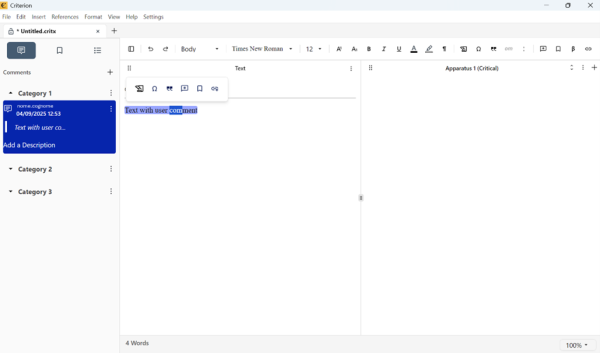
Accessing the Annotation Sidebar
1. Click the annotation icon in the toolbar to toggle the **Annotation Sidebar**
2. The sidebar appears on the left-hand side and lists all annotations, optionally grouped into categories
Creating Annotations
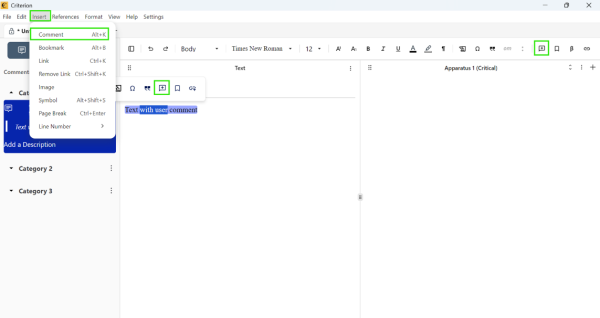
Methods for Insertion
 | Note Important: You must select text before inserting a comment. The annotation tools remain disabled until a valid selection is made. |
|---|
| Method | Action |
| Bubble Toolbar | Appears after text selection |
| Toolbar Button | Click the annotation icon |
| Menu Bar | Insert > Comment |
| Keyboard | Ctrl+Alt+K (Win/Linux) / ⌥⌘+K (macOS) |
Text Types for Annotation:
- Main Text
- Apparatus Text
Single characters or entire sections can be selected.
Annotation Structure
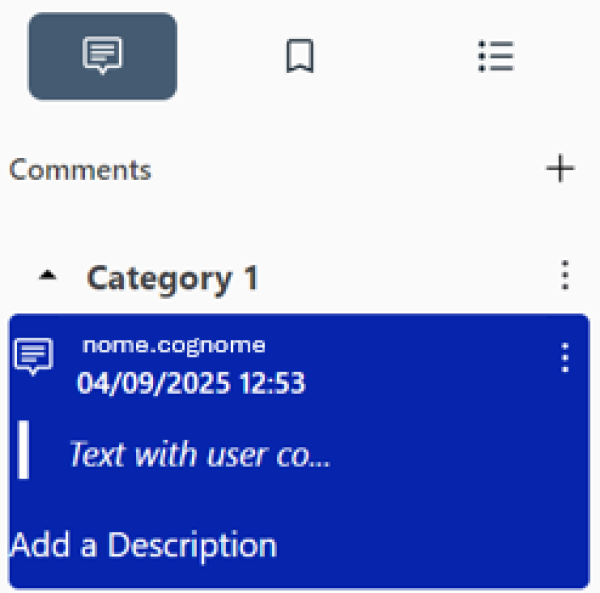
Each annotation contains:
| Component | Details |
| Metadata | Author name (from system username), Creation or last modification dates |
| Text Reference | Highlighted portion of selected text; Tooltip preview if text exceeds 20 characters |
| Description | Editable up to 2000 characters; Tooltip shown if longer than 150 characters |
Managing Annotations
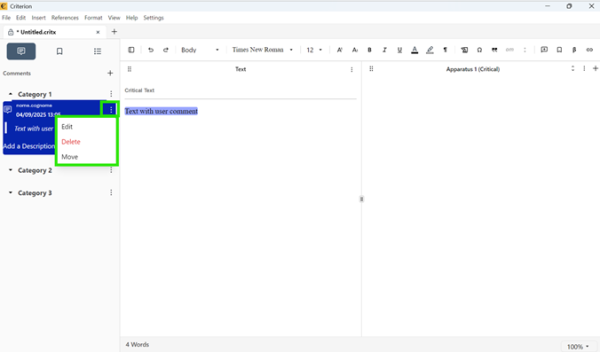
Edit:
1. Click the description or use the **Edit** button
2. Changes to the reference text in the editor are reflected automatically
Delete:
1. Click the **Delete** menu beside the annotation, or delete all text containing the annotation using backspace
2. Annotations are also removed if their referenced text is deleted
3. Use **Undo** to restore deleted annotations
Searching Annotations
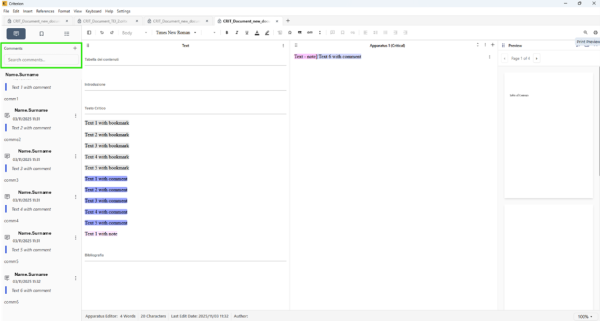
Annotations can be searched directly within the editor using a dedicated search field located in the left sidebar, under the Comments section.
Key behaviors:
| Feature | Description |
| Search Field Location | Text input field in left sidebar, within Comments section |
| Incremental Search | Results update in real time as you type |
| Searchable Content | Author's name, references, and annotation description (comment text) |
| Contextual Filtering | Only matching annotations displayed within original category |
| Automatic Filter Reset | Clicking outside search field clears filter and restores full list |
| No-Results Handling | If no matches found, comment list remains unchanged |
| Document Scope | Search limited to annotations in currently open document |
| Exclusion from Global Search | Annotations not included in “Edit > Find” functionality |
Annotation Categories
Create:
1. Click the + icon in the top-right of the sidebar
2. A new category is created as "Category #1" (editable up to 255 characters)
3. If no categories exist, annotations are placed under "Uncategorised"
Rename:
1. Double-click the category name or use the **Edit** menu
Expand/Collapse:
1. Use the "▾" icon to toggle visibility of annotations within a category
Delete:
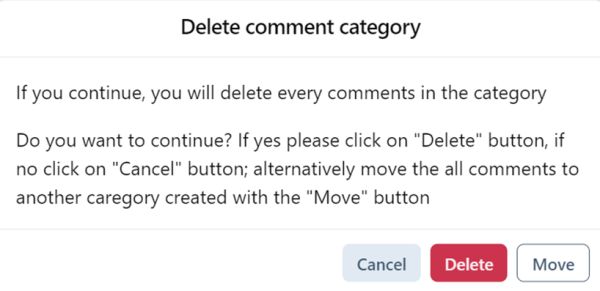
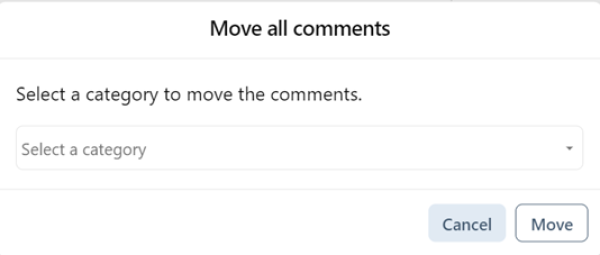
1. Use the **Delete** menu
2. Choose to:
  * Delete all annotations in the category
  * Move annotations to another category (dropdown shown)
3. If no categories exist, moved annotations go to "Uncategorised"
Text Integration & Highlighting
Navigation:
- Clicking an annotation scrolls to and highlights the related text
- Hovering over text automatically highlights the associated annotation in the sidebar—even inside collapsed categories
Highlight Toggle:

- Use the “Show Comment Highlights” checkbox in the main and apparatus editor:
- Enabled: All comments are visually highlighted (default setting)
- Disabled: Highlights are hidden
Metadata
Annotations automatically track:
- Author
- Creation Date
- Last Modified Date
| | Note: Author name is based on the user's operating system configuration. |
|---|
Additional Features
- Hover over the commented text to reveal the corresponding annotation in the sidebar
- Collapsed categories automatically expand when you click on the text containing the relevant annotations
- Highlight color is distinct from bookmarks/notes and configurable via settings (see Critical Apparatus and Sigla Management)