Table of Contents
Keyboard Shortcuts Management
Criterion allows you to personalize your workflow by customizing keyboard shortcuts. This feature gives you full control over how you interact with the application, enhancing efficiency, reducing repetitive actions, and adapting interface to your preferences.
All changes saved automatically to user profile and take effect immediately, no restart required.
Accessing the Keyboard Shortcuts Manager
 | Note: On macOS, Keyboard menu appears under application name (e.g., Criterion > Customize Shortcuts). |
|---|
1. Click on Keyboard menu in top application bar
2. Select Customize Shortcuts
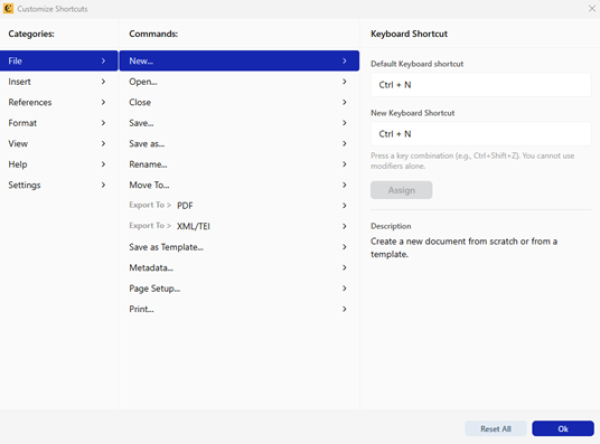
New window titled “Keyboard Shortcuts” opens, organized into three main sections:
- Categories (left panel)
- Commands (center panel)
- Default Keyboard Shortcut (right panel)
Understanding the Interface
Categories
Panel lists all main menu categories available in Criterion:
| | Note: All functionalities accessible through Edit menu will not support shortcut customization, as these commands adhere to standard and universal conventions shared across all text editors. |
|---|
| Category | Platform |
| File | All |
| Insert | All |
| References | All |
| Format | All |
| View | All |
| Help | All |
| Settings | Windows & Linux only |
| Criterion | macOS only |
| | Note: Platform-specific menus only shown on relevant operating system. |
|---|
Commands
When you select a category, this panel displays all available commands within it (e.g., New, Save, Copy, Bold, etc.).
Click any command to view or modify its assigned keyboard shortcut.
Default Keyboard Shortcut
When a command is selected, this section shows:
- The default shortcut (e.g., Ctrl+N on Windows/Linux, ⌘+N on macOS)
- A “New Keyboard Shortcut” input field
- An “Assign” button
- A short description of what command does
Contextual help message appears in input field:
- Windows/Linux: “Press a key combination (e.g., Ctrl+Shift+Z). You cannot use modifiers alone.”
- macOS: “Press a key combination (e.g., ⌘+Shift+Z). You cannot use modifiers alone.”
Customizing a Keyboard Shortcut
Step-by-Step Instructions:
1. Select a command from Commands list
2. Click inside "New Keyboard Shortcut" field
3. Press your desired key combination (e.g., Ctrl+Alt+T)
- You must include at least one base key (letter, number, F1–F12, Enter, Space, etc.)
- Only simultaneous key presses accepted (no sequences like "A then B")
- Valid modifiers: Ctrl (or ⌘ on Mac), Alt, Shift – entered in that order
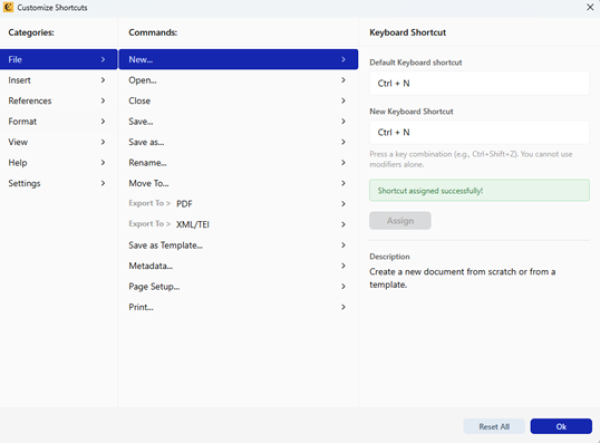
4. Click Assign to save your new shortcut
Your new shortcut now active and appears next to command on list.
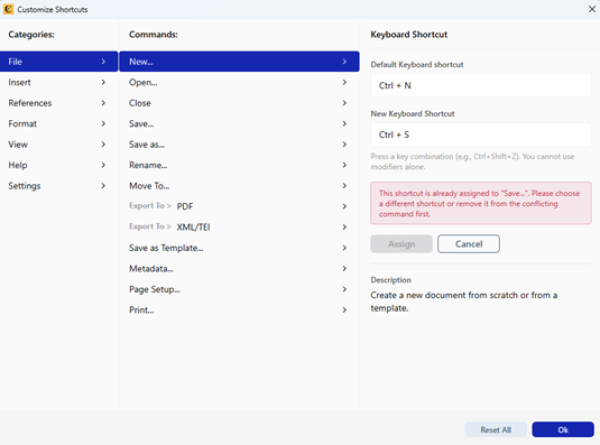
 | Warning: If shortcut already in use, warning appears: “This shortcut is already assigned to [Command Name].” You cannot assign it without first resolving conflict. |
|---|
Conflict Prevention
Criterion prevents duplicate shortcuts to avoid confusion:
- If you try to assign shortcut already used by another command, system blocks assignment and shows warning
- You must choose different combination or reassign shortcut manually after reviewing conflict
Resetting Shortcuts
Restore all shortcuts to original defaults:
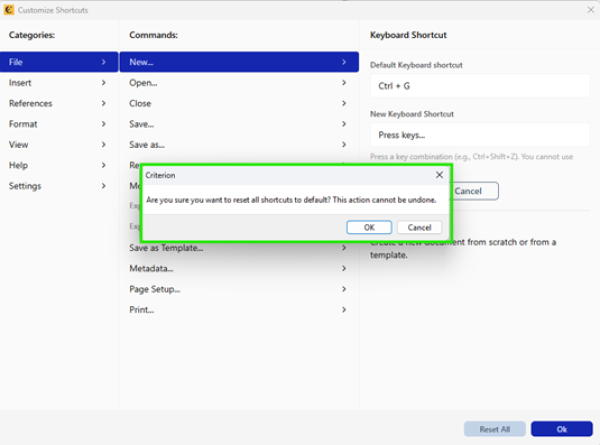
1. Click Reset All button at bottom of window
2. Confirmation dialog appears:
  - "Are you sure you want to reset all shortcuts to default? This action cannot be undone."
3. Click OK to confirm
All custom shortcuts removed, defaults restored immediately.
Saving and Closing
- Click OK to save all changes and close window
- Click Exit to discard unsaved changes and close window
| | Note: Changes not applied until you click OK. |
|---|
Technical Notes & Limitations
- No dropdown-menu shortcuts: Cannot assign shortcuts to menu headers that open submenus (e.g., File > Open Recent, Insert > Line Number)
- Simultaneous input only: Sequences like “Ctrl+A then B” not supported
- Modifier-only combinations (e.g., just Ctrl or Shift+Alt) rejected
- Supported base keys include:
- Letters (A–Z)
- Numbers (0–9)
- Function keys (F1–F12)
- Special keys: Enter, Space, Tab, Backspace, Delete, Escape, and arrow keys
Summary of Default Keyboard Shortcuts
File Operations:
| Action | Windows/Linux | macOS |
| New | Ctrl+N | ⌘+N |
| Open | Ctrl+O | ⌘+O |
| Save | Ctrl+S | ⌘+S |
| Save As | Ctrl+Alt+S | ⌘+Alt+S |
| Close | Ctrl+W | ⌘+W |
| Quit | - | ⌘+Q |
Editing:
| Action | Windows/Linux | macOS |
| Cut | Ctrl+X | ⌘+X |
| Copy | Ctrl+C | ⌘+C |
| Paste | Ctrl+V | ⌘+V |
| Undo | Ctrl+Z | ⌘+Z |
| Redo | Ctrl+⇧+Z | ⇧⌘+Z |
Formatting:
| Action | Windows/Linux | macOS |
| Bold | Ctrl+B | ⌘+B |
| Italic | Ctrl+I | ⌘+I |
| Underline | Ctrl+U | ⌘+U |
Apparatus & References:
| Action | Shortcut (All OS) |
| Add Note | F5 |
| Add Siglum | F3 |
| Add Reading Separator | F2 |
| Add Reading Type | F4 |
| Sigla Setup | F6 |
| Add Citation | Ctrl+⇧+B / ⌘⇧B |
Navigation & Utilities:
| Action | Windows/Linux | macOS |
| Find | Ctrl+F | ⌘+F |
| Show Unprintable Chars | F7 | F7 |
| Insert Link | Ctrl+K | ⌘+K |
| Remove Link | Ctrl+⇧+K | ⇧⌘+K |
| Add Bookmark | Ctrl+Alt+B | ⌥⌘+B |
| Add Comment | Ctrl+Alt+K | ⌥⌘+K |