Table of Contents
Manage Section Style
Overview
The Section Style Management feature in Criterion enables users to create, edit, import, and apply customized text styles (e.g., for titles, paragraphs, notes). These styles ensure visual consistency and structural hierarchy in documents and are persistent across sessions.
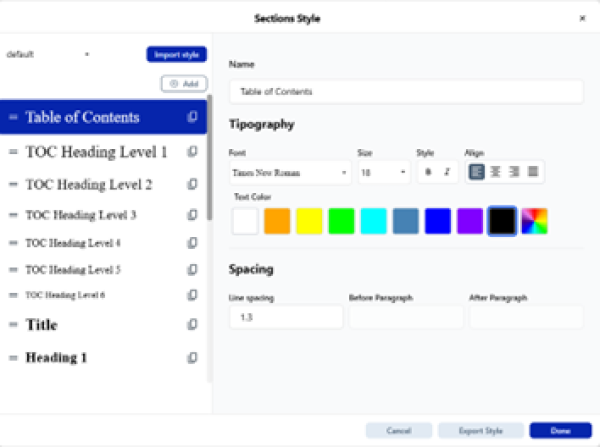
Accessing Section Style Editor
You can access the Sections Style screen via:
- Menu Path: Format → Sections Style...
Screen Layout
The screen is divided into three sections:
2.1 Left Panel – Style Templates
| Element | Description |
| My Style | Lists all imported styles |
| Import Style | Import .STL style files from: C:\Users\<username>\AppData\Local\Programs\Criterion\resources\buildResources\styles |
| Add Button | Adds a new style named “New Style”, with default attributes |
| Style List | Lists existing styles in the current template |
| Duplicate | Clones the selected style (e.g., New Style, New Style 1, …) |
| Delete | Permanently removes the selected style after confirmation (only user-created styles) |
2.2 Right Panel – Style Customization
When a style is selected, this panel allows customization:
| Setting | Options |
| Name | Unique style name (duplicates not allowed) |
| Typography - Font | Choose from system-installed fonts |
| Typography - Size | Font size as per toolbar settings |
| Typography - Style | Bold, Italic (Underline and other styles not supported in LaTeX output) |
| Typography - Align | Left, Center, Right, Justify |
| Typography - Text Color | Palette or predefined options |
| Spacing - Line Spacing | Vertical space between lines |
| Spacing - Before Paragraph | Space before the paragraph |
| Spacing - After Paragraph | Space after the paragraph |
Note Important: Text Formatting Limitations in LaTeX Output
1. Font, Size, Style, and Color: Can be set for all elements. Only bold and italic are supported; underline is not.
2. Text Alignment: Can be applied ONLY to:
- Table of Contents (ToC) title
- All five heading levels (including Title)
- Body text
All other elements default to left alignment.
3. Line Spacing: Can be configured for all elements EXCEPT: Apparatus Lemma, Critical Notes, Margin Notes, Line Numbers, Page Notes, Header and Footer.
4. Paragraph Spacing: Only available for the Body text.
2.3 Bottom Panel – Actions
| Button | Behavior |
| Cancel | Cancels all unsaved changes and closes the dialog |
| Export Style | Exports current style settings to a .STL file |
| Done | Saves changes and closes the dialog (changes saved at document level) |
Style Application Logic
| Application Scope | Behavior |
| To Selection | Applies the style to the selected text only |
| To Paragraph | If no text is selected, the style applies to the entire paragraph where the cursor is placed |
 | Note: A paragraph is considered a block of text between line breaks or indentations. |
|---|
Retroactivity of Style Changes
Formatting changes made via Format > Section Style follow specific retroactivity rules:
Non-retroactive styles (changes apply only to new content, not existing text):
- Body text (all properties: font, size, style, alignment, spacing)
- Critical Notes, Page Notes, Section Notes, and Margin Notes (style, alignment, and spacing)
Retroactive styles (changes apply to all existing and future content):
- Title and ToC levels
- All five heading levels (including Title)
- Apparatus Lemma
- Line Numbers
- Bibliographic References
- Header and Footer
 | Warning: These rules also apply when styles are modified using the toolbar, keyboard shortcuts, or the Change Template operation. Always consider retroactivity when planning document-wide formatting updates. |
|---|