Table of Contents
Profile Editing and Account Deletion
Profile Editing
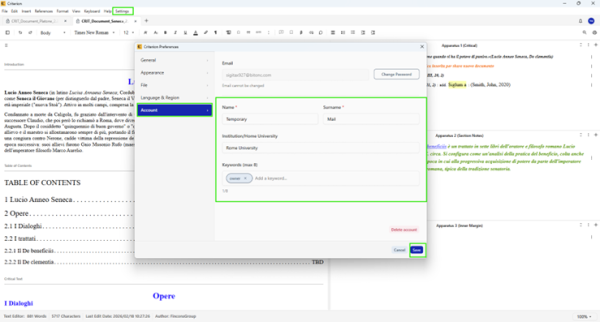
Once authenticated, users can modify their personal data:
1. Open Settings → Preferences → Account tab
2. Click Edit Profile (top right)
3. Modify:
- Name and Surname
- Institution/Home University
- Keywords (max 8)
4. The system automatically cleans redundant spaces and avoids duplicates among keywords
5. Click Done to save or Cancel to discard
Changing Password
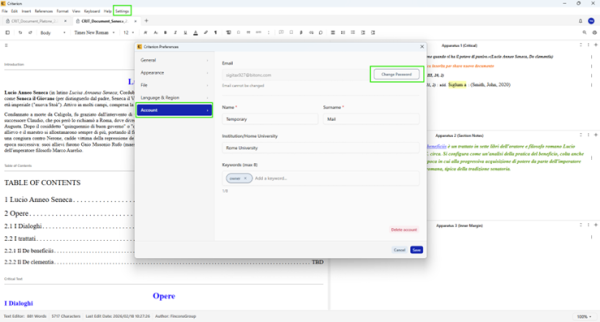
To change your password:
1. From the Account tab in Preferences, click Change Password
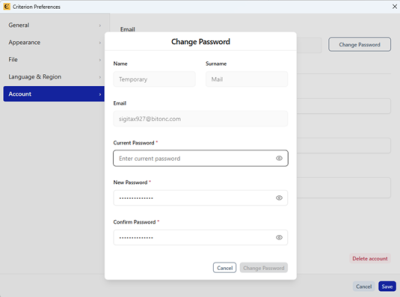
2. Complete the form with:
- Current password
- New password (must comply with security policy)
- Confirm new password
3. Click Change Password
4. After confirmation:
- The password is updated
- A notification email is sent to the user
- The user is automatically logged out
- They must log in again with the new password
Account Deletion (GDPR Art. 17)
Warning: Account deletion is irreversible. Documents shared by the user are physically removed; collaborators who have not downloaded them permanently lose access.
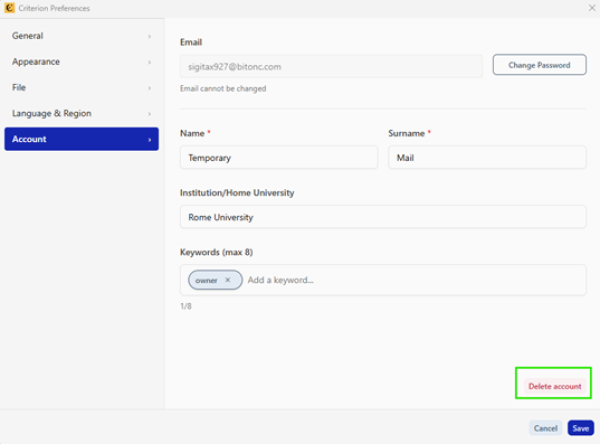
To delete your account:
1. From the Account tab in Preferences, click Delete my account
2. In the confirmation modal:
- Enter Current password
- Check the mandatory checkbox: "I understand this action is irreversible and all my data will be permanently deleted"
3. Click Delete Account (enabled only if password is correct and checkbox is selected)
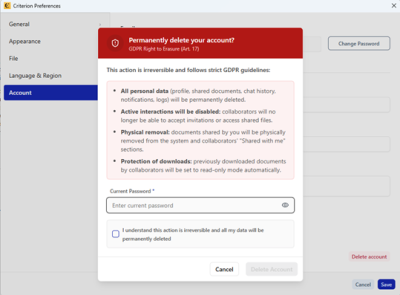
The system executes:
- Immediate revocation of all permissions on shared documents
- Physical deletion of all personal data (profile, shared documents, chat history, notifications)
- Deletion of chat history with all collaborators
- Confirmation email sent to the user
- Email sent to affected collaborators (notification of document unavailability)
- Automatic logout