Table of Contents
Export (PDF, XML/TEI, Excel) and Print
Exporting a Critical Edition Document
Generate standardized versions of critical edition documents for publication, digital archiving, or academic collaboration.
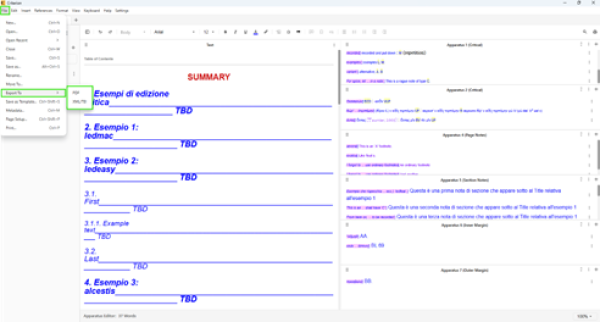
Accessing the Export Feature
1. Open your .critx file in Criterion
2. Navigate to File > Export To...
3. Export configuration wizard opens for format selection and content customization
Choosing the Output Format
| Format | Description | Best For |
| Print-ready version mirroring visual layout, including pagination, margins, styles, comments | Print, editorial review, submission | |
| XML/TEI (P5) | Full document structure and content compliant with TEI P5 schema, omitting layout/visual styling | Digital preservation, semantic analysis, computational research |
Each format generates file named according to document title (e.g., MyEdition.pdf or MyEdition.xml).
Customizing Exported Content (PDF only)
 | Note: Content selection not available for XML/TEI export, as this format requires full document inclusion per TEI standard. |
|---|
For PDF exports, selectively include/exclude sections:
- Table of Contents
- Introduction
- Critical Text
- Bibliography
- User Comments (individually or by author)
Configuration:
- Use checkboxes to select desired sections
- If no content selected, Criterion displays warning and blocks export until at least one section chosen
Filtering User Comments
In collaborative documents with multiple reviewers:
- Use Advanced Filter to choose which users' comments to include
- Options:
- Export all comments
- Export only comments by selected users
- Export individual comments manually
Filtering ensures reviewers/editors can generate focused outputs with only relevant annotations.
Export Process and Feedback
1. Click Export to begin
2. Progress bar indicates export status
3. Upon completion, Criterion displays:
  - Success message
  - Path to exported file (e.g., Downloads folder)
Clicking Cancel exits wizard without generating output.
Output Format Details
PDF Export:
- Accurate page formatting
- Recalculated elements (page count, footnotes, line numbers)
- Section-based content inclusion per your selection
XML/TEI Export:
- Structured according to TEI P5 with:
- <teiHeader>: metadata (title, author, license, publisher, edition, source bibliography)
- <text>: editorial content, structured by section type
- <back>: apparatus material (<listWit> for witnesses, <listApp> for critical apparatus)
- All required TEI tags validated
- Missing metadata replaced with “DataNotAvailable”
- Output compatible with TEI validators (e.g., TEI by Example)
Example XML Structure (TEI P5)
<TEI>
  <teiHeader>
    <fileDesc>
      <titleStmt>
        <title>My Critical Edition</title>
        <author>John Doe</author>
      </titleStmt>
      <editionStmt>
        <edition n="1.2">Peer-reviewed version</edition>
      </editionStmt>
      <publicationStmt>
        <publisher>DataNotAvailable</publisher>
        <availability status="unknown">
          <p>(unknown) the status of the text is unknown.</p>
          <licence target="CC-BY">
            <p>Creative Commons Attribution</p>
          </licence>
        </availability>
      </publicationStmt>
      <sourceDesc>
        <listBibl>
          <bibl>
            <author>Editor</author>
            <title>Source Title</title>
            <date>2025</date>
          </bibl>
        </listBibl>
      </sourceDesc>
    </fileDesc>
  </teiHeader>
  <text>
    <body>
      <div type="Introduction" n="1">
        <head>Introduction</head>
        <p>This edition presents...</p>
      </div>
    </body>
  </text>
  <back>
    <listWit>
      <witness xml:id="V">
        <abbr>V</abbr> Vaticanus latinus 1873, IXe.
      </witness>
    </listWit>
    <listApp>
      <app xml:id="app_001">
        <lem>stationes</lem>
        <rdg wit="#V">-tones</rdg>
        <note>stationes, edd.: -tones V</note>
      </app>
    </listApp>
  </back>
</TEI>
Troubleshooting
| Problem | Solution |
| No sections selected | Ensure at least one checkbox marked before clicking Export |
| Missing metadata | Check File > Metadata panel to complete required fields |
| Validation errors (XML) | Validate output with TEI by Example Validator |
| | Note: Exporting does not modify your .critx document. Each export operation is self-contained and local; no data transmitted externally. |
|---|
Print Functionality
Generate hard copy or PDF version of critical edition document with selective content inclusion.
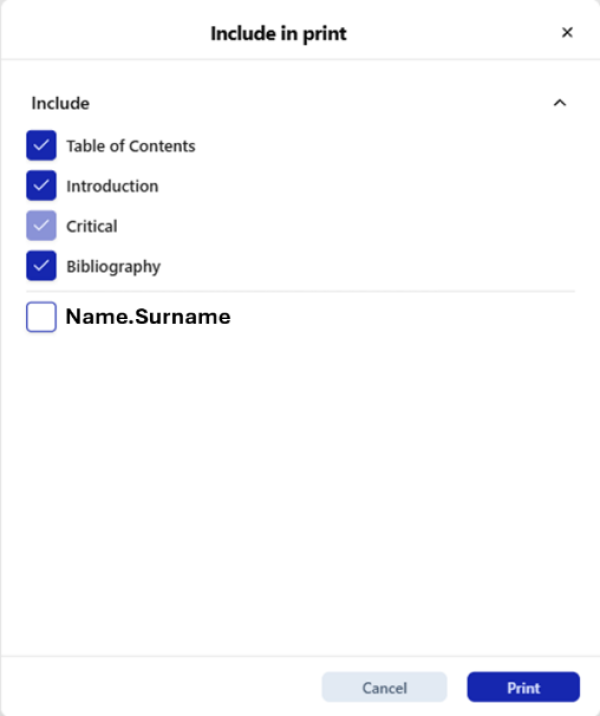
Accessing the Print Menu
- File > Print…
- Keyboard shortcut: Ctrl+P (Windows/Linux) / ⌘+P (macOS)
- Always available as last item in File menu
Print Options Dialog
Section Selection:
- Checkboxes to select which document sections to include
- Available sections reflect actual content in open document:
- Table of Contents (ToC)
- Introduction
- Critical Text (always included; cannot be disabled)
- Bibliography
Comment Selection:
- List of users who contributed comments to document
- Checkbox per user to include/exclude their comments in printout
- If enabled, selected user comments printed at end of document, after Bibliography
Confirming or Cancelling Print Operation
| Button | Action |
| Cancel | Cancels print setup, returns to document editor |
| Generates print preview in PDF format; printing handled by native OS capabilities (Adobe Reader or equivalent) |
Print Output Structure
If comments selected, automatically appended at end of printed document, preserving original layout of:
- Chosen sections (in order)
- User comments (grouped by author)
Print Preview Functionality
View how document will appear when printed, with full rendering of layout, formatting, headers, footers, notes, and pagination.
Enabling Print Preview
Toggle from two locations:
- MenuBar: View > Print Preview (checkmark when active)
- Toolbar Icon: Click Print Preview button
Print Preview opens immediately in side pane without reloading document. Close via X icon in preview pane.
Print Preview Accuracy
 | Warning: Since PDF generation performed in LaTeX, and LaTeX does not support highlighted text, print preview and printing in Criterion will not support highlighted text. Text highlighting visible only in editor. |
|---|
Print Preview renders true-to-print visualization:
- Layout with correct page breaks and margins
- Page numbers and headers/footers
- Line numbers aligned with main text
- Marginal notes, footnotes, section notes
- Column structures and page orientation
- Bibliography and optional comments
Refresh Button: Print Preview updates asynchronously. Press Refresh icon if changes not immediately reflected.
Fullscreen/Expanded Preview
Click Expand icon in Print Preview pane to open dedicated full-screen tab:
- Identical to standard preview
- Supports zooming (in/out)
- Allows page navigation
- Provides Close tab (X) functionality
- Includes resize and drag support
Active expanded tabs visually highlighted to indicate preview mode.
Structural Elements Displayed
Print Preview includes complete rendering of all paratextual components:
Page Layout:
- Page size (e.g., A4 converted to pixels)
- Orientation: portrait or landscape
- Header/Footer: 3 sections (left, center, right) supporting Page Number, Date/Time, Author, Title
Document Sections:
- Table of Contents: auto-formatted with page numbers<note tip>Page numbers marked TBD in editor; actual numbering generated during print preview.</note>
- Introduction: optional, 1 or 2 columns
- Critical Text: mandatory, 1-4 columns, with line numbering
- Critical Notes: displayed below text with separators
- Section Notes: appear at start of referenced page section
- Page Notes: shown at bottom of page
- Margin Notes: Inner/Outer determined by page parity; text-only, not indented
- Bibliography: optional, 1 or 2 columns
- Comments: optional, displayed at end if enabled during print
Line Numbers
| | Note: Line numbers visible only in Print Preview, not in text view, printed output, or export. |
|---|
- Positioned in outer margin
- Only paragraph lines counted (excluding titles and headings)
- Multiple apparatus entries share same line number
- Configurable via References > References Format > Line Numbering
Page Numbers and Navigation
Page numbers calculated dynamically:
- Reflect changes in layout and content length
- Shown in headers or footers
- Auto-adjusted upon layout modifications
Navigate using scrollbars or navigation arrows.
Resizing and Rearranging Preview
- Drag preview pane to reorganize workspace
- Resize by hovering on left edge and dragging sidebar
- Expanded preview tab allows full-screen inspection